
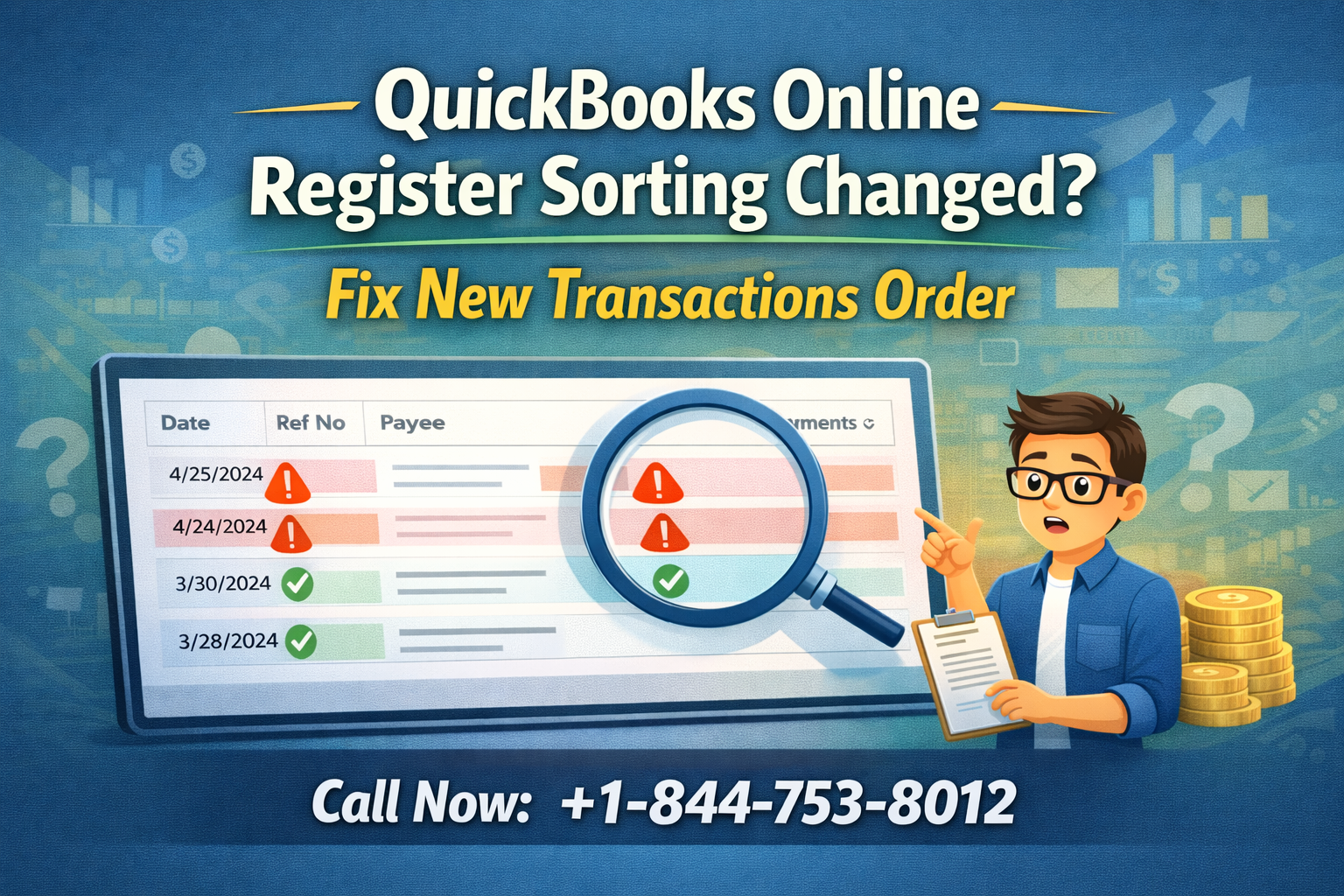
If you’ve opened your QuickBooks Online bank register and noticed that new transactions are showing at the bottom instead of the top, you’re not imagining things. Many users report that the QuickBooks Online register sorting suddenly looks reversed, forcing them to scroll down every time to see the latest activity.
This QBO register sorting issue is common—and thankfully, fixable.
Let’s walk through why it happens and how to change the register sort order in QuickBooks Online so your newest transactions appear first again.
Why Are New Transactions Showing at the Bottom in QuickBooks Online?
By default, QuickBooks Online should display transactions with the newest first. However, a change in settings or an update can cause:
- QuickBooks Online new transactions at bottom
- QuickBooks Online register backwards
- QuickBooks Online latest transactions not first
This often feels like the QuickBooks Online transaction list is reversed, but the data itself is fine—it’s just the display order.
Common Reasons the QBO Bank Register Order Changed
Here are the most common causes behind the QuickBooks Online register display settings changing:
1. Register Sort Order Was Clicked Accidentally
In the bank register, clicking the Date or Ref No. column header can flip the sort order, causing:
- QuickBooks Online sort by date register (oldest to newest)
- QuickBooks Online register newest transactions not on top
2. Browser or Session Glitch
Temporary glitches can affect the QuickBooks Online bank register view, especially after updates or long sessions.
3. Account-Specific Settings
Some users notice the issue in one account but not others, leading to confusion around how to change register view in QuickBooks Online.
How to Sort the QuickBooks Online Register by Newest First
Follow these steps to fix the issue and move new transactions back to the top:
Step-by-Step Fix
- Go to Accounting (or Transactions, depending on your layout)
- Select Chart of Accounts
- Click View Register for the affected bank or credit card
- Click the Date column header once or twice
- Clicking again reverses the order
- Confirm the newest transactions appear at the top
This resolves most cases of:
- QuickBooks Online scrolling to bottom for new transaction
- QuickBooks Online register backwards
Extra Tips to Customize Your QuickBooks Online Bank Register
If you want more control over your register view, here are some QuickBooks Online register tips:
- Use filters to limit visible transactions
- Adjust zoom and screen size for better visibility
- Refresh the page or log out/in if sorting doesn’t stick
- Clear browser cache if the QBO register sorting issue returns
These steps help when users search for:
- customize QuickBooks Online bank register
- QuickBooks Online help with register
When the Sorting Keeps Reverting
If the QuickBooks Online register sort order keeps changing back, it could be due to:
- Browser extensions
- Saved session issues
- Account-level bugs
At that point, it’s best to get direct help.
Need Help Fixing QuickBooks Online Register Issues?
If you’re tired of fighting the register view or want help optimizing your workflow, talk to a QuickBooks expert.
📞 Call 844-753-8012 for help with:
- QuickBooks Online register sorting issues
- Customizing bank register views
- Transaction display problems
- General QuickBooks Online support
Final Thoughts
When QuickBooks Online register sorting changes, it can slow you down—but it’s usually just a display setting. A few clicks can restore your newest transactions to the top and get you back on track.
Still stuck or want it fixed fast?
📞 Call 844-753-8012 and get expert help today.






