
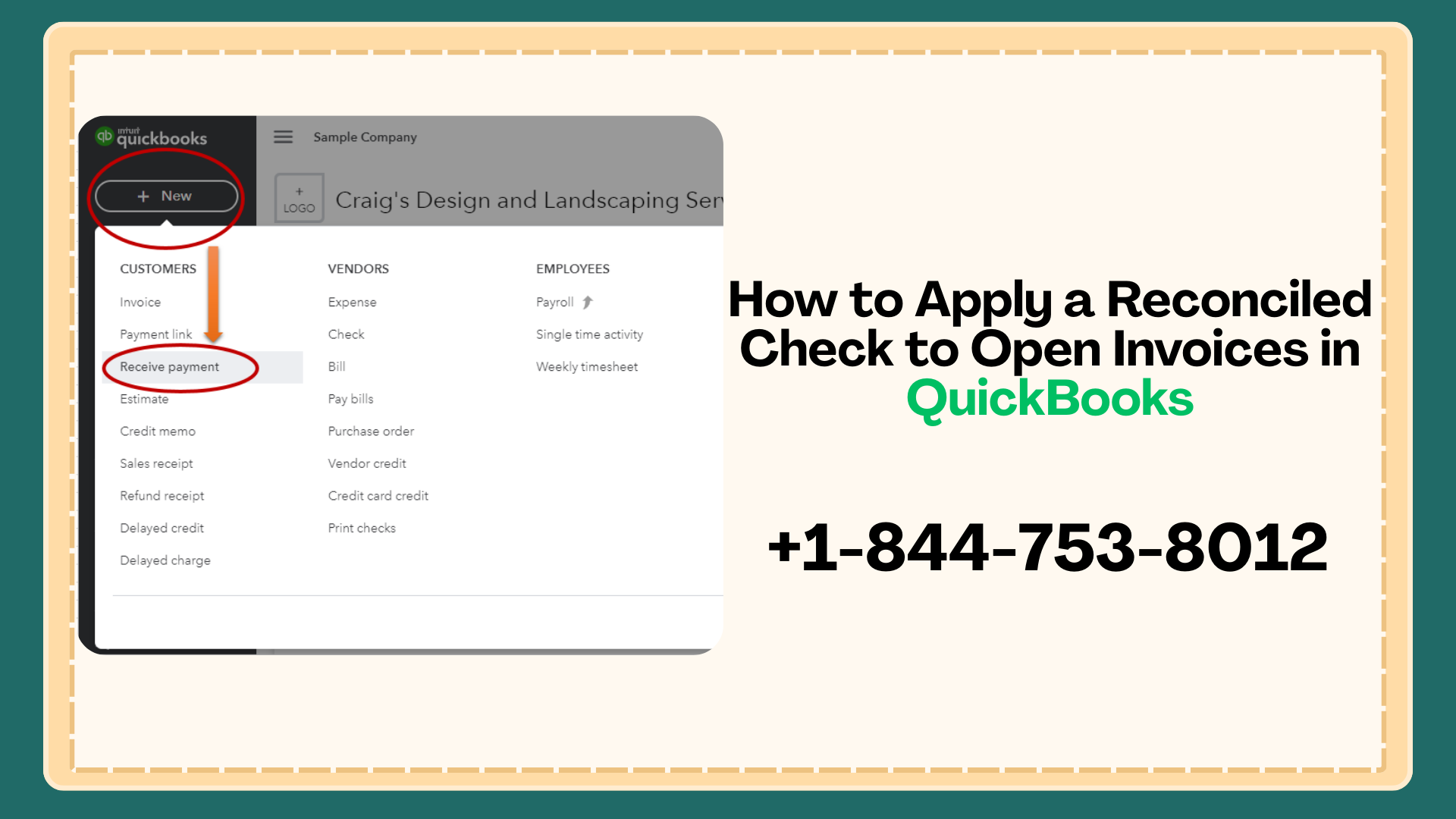
Managing payments in QuickBooks is generally straightforward, but sometimes issues arise—like when a reconciled check hasn’t been applied to an invoice. If you’re struggling with a reconciled check not applied to invoice or QuickBooks open invoices after check payment, this guide will help you resolve the problem efficiently.
We’ll walk you through how to apply a reconciled check to open invoices in QuickBooks, correct misapplied payments, and prevent future reconciliation errors.
Common Scenarios for Reconciled Check Issues
Some frequent problems include:
- QuickBooks check already reconciled but not linked to an invoice
- QuickBooks payment applied incorrectly, leading to open invoices
- QuickBooks reconciled payment showing as unapplied
- QuickBooks check payment not closing invoices
Understanding these scenarios will help you take the correct steps to resolve them.
Also Read: QuickBooks Pro Desktop 2024: Will It Still Be Supported?
How to Apply a Reconciled Check to Invoices in QuickBooks
Here’s a detailed step-by-step guide on how to apply a reconciled check to invoices in QuickBooks:
1. Identify the Reconciled Check
Locate the check in QuickBooks by going to:
Banking → Use Register → Select the Account → Find the Check
- Ensure the check is reconciled (it should have a “R” in the reconciliation column).
- If the check was cleared but not applied to an invoice, proceed to the next step.
2. Open the Customer Payment Window
- Go to Customers → Receive Payments.
- Select the customer associated with the check.
3. Link the Check to the Invoice
- In the payment window, locate the invoice you want to pay.
- Select the invoice and apply the payment amount from the reconciled check.
- Ensure the payment clears the invoice correctly.
Tip: If the check amount doesn’t match the invoice, you may need to adjust or split the payment.
4. Save the Payment
- After linking the check to the invoice, click Save & Close.
- Verify that the invoice is now marked as paid.
5. Confirm in the Bank Reconciliation
- Open your Bank Reconciliation report to ensure the previously reconciled check is still marked as cleared.
- This prevents QuickBooks bank reconciliation check issues from recurring.
Aslo Read: How to Access Previous Years in QuickBooks Self-Employed for Tax Filing
Troubleshooting Common Issues
QuickBooks Check Payment Not Closing Invoices
If the invoice remains open:
- Verify the payment was applied to the correct customer and invoice.
- Check for duplicate payments or misapplied amounts.
QuickBooks Reconciled Payment Showing as Unapplied
- Open the payment and reapply it to the correct invoice.
- Save and close, then refresh your reports.
QuickBooks Apply Old Check to Invoice
If you need to apply a check from a previous reconciliation period:
- Locate the check in the register.
- Use Receive Payments to link it to the old invoice without disturbing past reconciliations.
Preventing Future Payment Application Errors
- Always link checks to invoices at the time of receipt.
- Double-check customer and invoice details before recording payments.
- Run reconciliation reports regularly to catch discrepancies early.
Conclusion
Applying a reconciled check to open invoices in QuickBooks may seem tricky, but with careful steps, it’s manageable. Whether you’re dealing with a QuickBooks check already reconciled, QuickBooks payment applied incorrectly, or QuickBooks bank reconciliation check issue, following the steps above ensures your accounts remain accurate.
For expert help with linking checks to invoices in QuickBooks or resolving complex reconciliation issues, call QuickBooks Support at 844-753-8012.
FAQ: Applying a Reconciled Check to Open Invoices in QuickBooks
Sometimes checks are recorded in the bank account but not linked to the correct invoice. This can happen if the payment was entered directly in the register or if the invoice was created after the check was deposited.
Go to Customers → Receive Payments, select the customer, choose the invoice, and apply the payment. Make sure the payment amount matches the invoice and then Save & Close.
Open the payment, reapply it to the correct invoice, and save. Then verify in your bank reconciliation report that the check remains marked as cleared.
Yes. Locate the check in your register and use Receive Payments to link it to the invoice without affecting past reconciliations.
This usually happens when the check wasn’t properly applied to the invoice at the time of entry. Re-linking the payment to the invoice will close it correctly.
1. Always apply payments directly to the relevant invoice.
2. Double-check customer and invoice details before recording payments.
3. Regularly review reconciliation reports for discrepancies.
For persistent issues like QuickBooks bank reconciliation check issues or complex payment errors, call QuickBooks Support at 844-753-8012 for expert assistance.






