
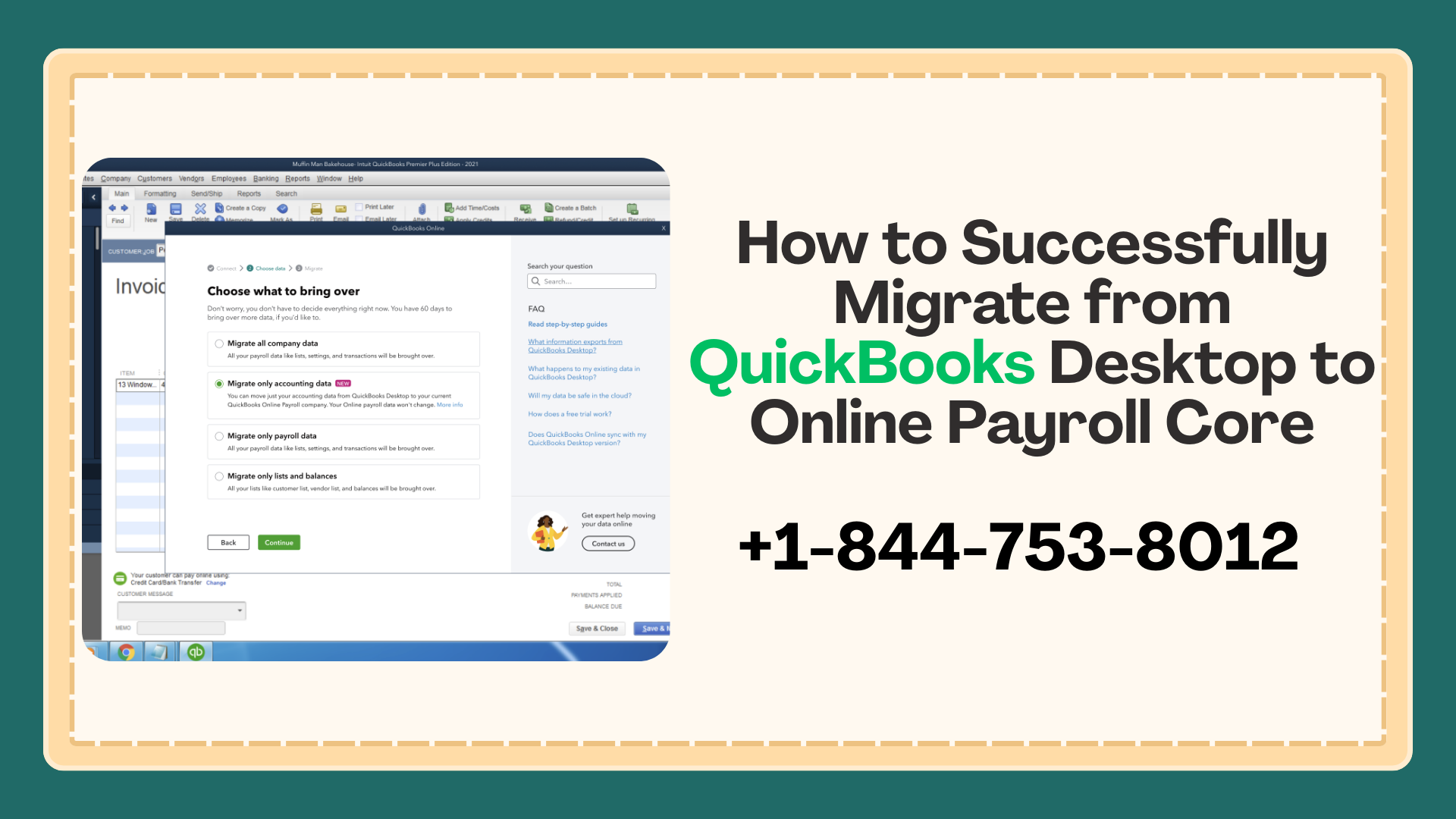
Migrating from QuickBooks Desktop to QuickBooks Online Payroll Core is a major step for any business. While QuickBooks Desktop has been a reliable tool for payroll and accounting for years, many companies are moving to QuickBooks Online Payroll Core to enjoy cloud accessibility, automated tax filings, and seamless integration with QuickBooks Online Accounting.
However, payroll migration requires careful attention to detail. Incorrect data can lead to discrepancies, especially in year-end forms like W-2s, and may require filing corrected W-2s (W-2c) with the IRS and state agencies. In this guide, we’ll walk you through the entire migration process, common issues, and how to ensure a smooth transition..
Why Businesses Migrate from QuickBooks Desktop to QuickBooks Online Payroll Core
Many businesses are choosing QuickBooks Online Payroll Core because it offers features that desktop versions cannot match:
- Cloud-based access: Run payroll and check reports from anywhere.
- Automated payroll tax calculations: QuickBooks calculates and files federal and state payroll taxes automatically.
- Employee self-service: Employees can view pay stubs, W-2s, and tax forms online.
- Real-time updates: Your financial data syncs instantly with QuickBooks Online Accounting.
- Enhanced security: Sensitive payroll data is protected with bank-level encryption.
Transitioning to QuickBooks Online Payroll Core reduces manual work and minimizes errors—but only if the migration is done correctly.
Also Read: How to Set Up the New Shipping Manager in QuickBooks Desktop
Step 1: Preparing for Migration
Preparation is crucial to ensure a smooth transition. Before starting, take these steps:
1.1 Reconcile Payroll Accounts
Verify that all payroll accounts in QuickBooks Desktop are reconciled. Make sure all payroll liabilities, taxes, and employee paychecks are accurate. Any discrepancies can cause problems after migration.
1.2 Verify Employee Information
Double-check that all employee information is correct:
- Full legal names
- Social Security numbers
- Mailing addresses
- Pay rates and withholding information
Incorrect employee data can cause errors in W-2s or tax filings.
1.3 Backup QuickBooks Desktop Data
Always create a backup of your QuickBooks Desktop company file. This ensures you can restore your data if something goes wrong during migration.
1.4 Check Year-to-Date (YTD) Payroll
Confirm that YTD payroll totals are accurate for each employee. Any missing or incorrect payroll entries could result in incorrect W-2 forms.
Step 2: Migrating Your Payroll Data
Once your data is ready, you can begin migrating to QuickBooks Online Payroll Core.
2.1 Log into QuickBooks Online
Access your QuickBooks Online account and navigate to the Payroll section.
2.2 Import Payroll Data
QuickBooks provides an Import Payroll Data tool that allows you to upload your Desktop payroll information. The system guides you through:
- Uploading employee information
- Importing payroll history
- Verifying tax liabilities
2.3 Review Imported Data
After migration, carefully review all imported data. Compare employee paychecks, taxes, and year-to-date totals against your QuickBooks Desktop records.
Tip: Some data may not transfer perfectly. For example, historical tax forms might need to be handled separately, or W-2s may need corrections.
Step 3: Common Post-Migration Issues
One of the most common issues after migration is incorrect W-2 forms. Here’s a scenario that often occurs:
“We migrated from QB Desktop to QB Online Payroll Core at the end of 5/25. QB sent out 2 W-2s to our employees and to the IRS and FTB. The first W-2 included only the Desktop payroll info, while the second W-2 included all wages but should have been a W-2c.”
This happens because QuickBooks sometimes generates new W-2s without properly flagging the original ones for correction.
Also Read: How to Fix “Forgot E-File 10-Digit PIN” in QuickBooks
Step 4: Issuing a Corrected W-2 (W-2c)
If your W-2 contains errors after migration, a W-2c (corrected W-2) must be issued.
4.1 Contact QuickBooks Support
Call QuickBooks Payroll Support at 844-753-8012. Provide:
- Employee names
- Social Security numbers
- Original W-2 forms
- Corrected payroll amounts
QuickBooks can issue W-2c forms to:
- Employees
- The IRS
- State tax agencies (e.g., FTB)
4.2 Keep Records
Always retain copies of W-2c forms. These records are crucial if the IRS or state agencies have questions.
Pro tip: Do not manually adjust W-2s unless you are confident in tax compliance rules. QuickBooks ensures corrections are processed properly.
Step 5: Verifying Payroll Accuracy
After migration and W-2c issuance, double-check your payroll:
- Run Payroll Summary Reports for each employee
- Verify YTD totals match your original Desktop data
- Confirm that all tax liabilities are correct and posted to the appropriate accounts
Taking these steps reduces errors and ensures compliance with federal and state payroll laws.
Step 6: Leveraging QuickBooks Online Payroll Core Features
Once migration is complete, take full advantage of QuickBooks Online Payroll Core’s features:
- Automated payroll tax filings: Never worry about late filings again.
- Direct deposit: Pay employees quickly and securely.
- Employee self-service portal: Employees can access pay stubs and W-2s online.
- Integration with QuickBooks Online Accounting: Real-time financial tracking and reporting.
- Custom payroll reports: Generate detailed reports for auditing, budgeting, and tax purposes.
These features save time, reduce errors, and provide greater insight into your business finances.
Step 7: Tips for a Smooth Migration
To avoid common pitfalls, follow these best practices:
- Migrate during a quiet payroll period – Avoid payroll deadlines or tax filings during the transition.
- Communicate with employees – Let them know about any changes to payroll access or portals.
- Keep a Desktop backup – Always have a copy of your original QuickBooks Desktop file.
- Review payroll reports immediately – Check for missing paychecks or incorrect tax filings.
- Contact support for complex issues – For W-2 corrections or tax discrepancies, call 844-753-8012.
Conclusion
Migrating from QuickBooks Desktop to QuickBooks Online Payroll Core offers many benefits, from automation and cloud access to real-time tax filing. However, careful planning, verification, and support are essential to ensure a smooth transition.
Key takeaways:
- Reconcile and verify your Desktop payroll data.
- Carefully migrate employee and payroll information.
- Review W-2 forms and issue W-2c if needed.
- Leverage QuickBooks Online Payroll Core’s automation and reporting features.
For any payroll discrepancies, corrections, or questions during migration, contact QuickBooks Payroll Support at 844-753-8012. Professional guidance ensures your payroll remains accurate and compliant.upport at 844-753-8012. Professional guidance ensures your payroll remains accurate and compliant.
Frequently Asked Questions (FAQs)
Yes, but ensure all payroll and tax filings up to the migration date are accurate. Partial-year migration may require careful review of W-2 and 941 filings.
If the migration is done correctly, taxes should transfer seamlessly. Any discrepancies may require a W-2c or amended tax filings.
Small businesses can often migrate in a few hours, but larger companies with complex payroll histories may take a few days.
QuickBooks can issue W-2c corrections. Contact support at 844-753-8012 for assistance.






